Drag-to-Connect and Game Center Leaderboards in a SwiftUI Puzzle Game, Updated for iOS 26
Originally published at https://bestlatestapps.com/blog/drag-to-connect-and-game-center-leaderboards-in-a-swiftui-puzzle-game/
A dot-matching board drawn with Canvas and TimelineView, drag gestures that chain same-colour dots, speed-based scoring and rising difficulty, pause and resume, and modern Game Center: authentication, submitting scores, the access point, and what iOS 26 deprecates
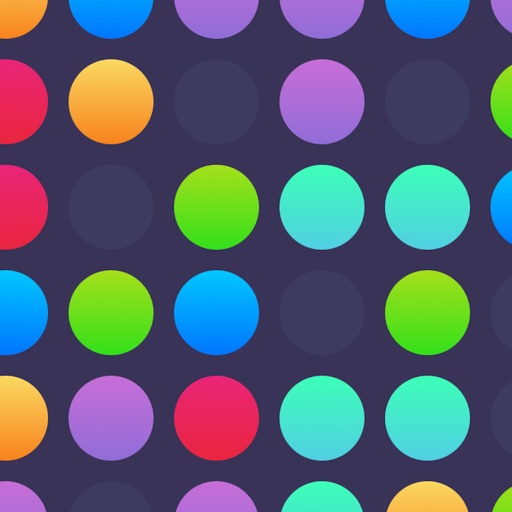
Speck Match is a puzzle game about speed. You tap and drag to connect matching coloured dots and clear them from the board, and the faster you match, the higher your score. New dots appear faster as you play, until the board is crowded and you're racing to keep up. Then you see where you rank on Game Center leaderboards against players worldwide.
I wrote about tap-based gameplay in SpriteKit in my Marbles Popperz article. Speck Match lets me cover two different things. The first is a drag-to-connect mechanic built entirely in SwiftUI, with Canvas and TimelineView instead of a game engine. The second is Game Center leaderboards in depth, which have changed more in the last few iOS releases than most developers realise. The latest change: Apple's documentation now marks GKGameCenterViewController as deprecated in iOS 26.
As always, the code is written for this article and checked against Apple's documentation. Gameplay rules beyond what the App Store listing says are labelled as the approach I'd use.
1. The board as plain data
Keep the game state free of SwiftUI, so you can unit-test it:
import Foundation
import CoreGraphics

enum SpeckColor: CaseIterable { case coral, mint, sky, lemon, violet }

struct Speck: Identifiable, Equatable {
    let id = UUID()
    var color: SpeckColor
    var position: CGPoint
    let bornAt: TimeInterval            // game time when it appeared, used for speed scoring
    static let radius: CGFloat = 18
}

struct Board {
    var specks: [Speck] = []
    var score = 0
    var elapsed: TimeInterval = 0       // game time only; doesn't advance while paused
    var nextSpawn: TimeInterval = 0
    var difficulty: Difficulty

    /// Seconds between new specks: starts relaxed, tightens as you play.
    var spawnInterval: TimeInterval {
        max(difficulty.minInterval, difficulty.startInterval - elapsed * difficulty.ramp)
    }

    var isOverfull: Bool { specks.count >= difficulty.maxSpecks }
}

struct Difficulty {
    let startInterval: TimeInterval, minInterval: TimeInterval, ramp: Double
    let maxSpecks: Int, colors: Int
    static let easy   = Difficulty(startInterval: 1.4, minInterval: 0.55, ramp: 0.004, maxSpecks: 40, colors: 3)
    static let normal = Difficulty(startInterval: 1.1, minInterval: 0.40, ramp: 0.006, maxSpecks: 36, colors: 4)
    static let hard   = Difficulty(startInterval: 0.9, minInterval: 0.28, ramp: 0.008, maxSpecks: 32, colors: 5)
}
"The game gets faster and more challenging as you progress" becomes one computed property, spawnInterval, and "Multiple difficulty levels" becomes three rows of numbers. The values are illustrative; tune them by playing.
2. Drawing and ticking with Canvas and TimelineView
For a few dozen circles, SwiftUI's Canvas (iOS 15+) is fast and simple. It's immediate-mode drawing, so you're not creating one view per dot. TimelineView(.animation(minimumInterval:paused:)) (iOS 15+) gives you a frame clock that can be paused, which matters later:
import SwiftUI

struct BoardView: View {
    @State private var game = GameModel(difficulty: .normal)
    @Environment(\.scenePhase) private var scenePhase

    var body: some View {
        TimelineView(.animation(minimumInterval: 1.0 / 60, paused: game.isPaused)) { timeline in
            Canvas { context, size in
                for speck in game.board.specks {
                    let rect = CGRect(x: speck.position.x - Speck.radius, y: speck.position.y - Speck.radius,
                                      width: Speck.radius * 2, height: Speck.radius * 2)
                    context.fill(Path(ellipseIn: rect), with: .color(speck.color.swiftUIColor))
                }
                if game.chain.count > 1 {                       // the line you're drawing
                    var path = Path()
                    path.addLines(game.chain.compactMap { id in game.board.specks.first { $0.id == id }?.position })
                    context.stroke(path, with: .color(.white.opacity(0.8)), lineWidth: 6)
                }
            }
            .onChange(of: timeline.date) { _, now in game.tick(now: now) }
        }
        .gesture(dragGesture)
        .onChange(of: scenePhase) { _, phase in if phase != .active { game.pause() } }
    }
}
This code uses iOS 17 conveniences (@Observable and the two-parameter onChange). For the app's iOS 15.6 minimum, the same model works as an ObservableObject with the single-parameter onChange(of:perform:). Two more notes. Keep tick cheap: spawn when due, check the overfull condition, and nothing else. And auto-pause when the scene leaves .active. A phone call shouldn't cost a player their best run, and the listing promises "Pause and resume anytime".
3. Drag to connect
The listing's core loop is "Tap and drag dots to match them by color. Connect matching colored dots to clear them from the board." The approach I'd use: touching down on a dot starts a chain. Dragging over another dot of the same colour, close enough to the last one in the chain, adds it. Lifting your finger clears the chain if it has at least two dots.
@Observable
final class GameModel {
    var board: Board
    var chain: [UUID] = []
    var isPaused = false
    private var lastTick: Date?

    init(difficulty: Difficulty) { board = Board(difficulty: difficulty) }

    func speck(at point: CGPoint) -> Speck? {
        board.specks.first { hypot($0.position.x - point.x, $0.position.y - point.y) <= Speck.radius * 1.4 }
    }

    func dragChanged(to point: CGPoint) {
        guard !isPaused, let hit = speck(at: point) else { return }
        if chain.isEmpty { chain = [hit.id]; return }
        guard let first = board.specks.first(where: { $0.id == chain[0] }),
              hit.color == first.color, !chain.contains(hit.id) else {
            // Dragging back onto the previous dot undoes the last link, like most connect games.
            if chain.count >= 2, hit.id == chain[chain.count - 2] { chain.removeLast() }
            return
        }
        chain.append(hit.id)
    }

    func pause() { isPaused = true; lastTick = nil }
    func resume() { isPaused = false }

    func tick(now: Date) {
        defer { lastTick = now }
        guard !isPaused, let last = lastTick else { return }
        board.elapsed += min(now.timeIntervalSince(last), 0.05)     // clamp hitches and resumes
        if board.elapsed >= board.nextSpawn {
            spawn()
            board.nextSpawn = board.elapsed + board.spawnInterval
        }
        if board.isOverfull { pause() /* game over: submit score, show results */ }
    }

    private func spawn() {
        let palette = Array(SpeckColor.allCases.prefix(board.difficulty.colors))
        board.specks.append(Speck(color: palette.randomElement()!,
                                  position: CGPoint(x: .random(in: 30...360), y: .random(in: 120...700)),
                                  bornAt: board.elapsed))
    }

    func dragEnded() {
        defer { chain = [] }
        guard chain.count >= 2 else { return }
        let cleared = board.specks.filter { chain.contains($0.id) }
        board.specks.removeAll { chain.contains($0.id) }
        board.score += Scoring.points(for: cleared, now: board.elapsed)
    }
}

extension BoardView {
    var dragGesture: some Gesture {
        DragGesture(minimumDistance: 0)                 // 0 so a touch-down starts the chain immediately
            .onChanged { game.dragChanged(to: $0.location) }
            .onEnded { _ in game.dragEnded() }
    }
}
DragGesture(minimumDistance: 0) is the important detail. The default minimum distance means the first few points of a drag are swallowed, which feels laggy in a speed game. Make the hit radius a bit larger than the drawn dot (1.4× here). Fingers are bigger than dots, and fair hit areas are most of what "Smooth, responsive controls" means in practice.
4. Scoring speed
"Speed matters – faster matches = higher scores." There are many ways to express that. The approach I'd use rewards how fresh the dots were when you cleared them, plus a bonus for longer chains:
enum Scoring {
    /// Each dot: 10 points, plus up to 10 more if cleared within 3 seconds of appearing.
    /// Chains: +25% per dot beyond two.
    static func points(for specks: [Speck], now: TimeInterval) -> Int {
        let perDot = specks.map { speck -> Double in
            let age = now - speck.bornAt
            let freshness = max(0, 1 - age / 3)           // 1.0 when brand new, 0 after 3 s
            return 10 + 10 * freshness
        }
        let chainBonus = 1 + 0.25 * Double(max(0, specks.count - 2))
        return Int((perDot.reduce(0, +) * chainBonus).rounded())
    }
}
The bornAt timestamp uses game time (board.elapsed), not wall-clock time. Otherwise pausing would make every dot on screen "old", and the player would be punished for taking a break.
5. Signing in to Game Center
Leaderboards start with authentication. On iOS, you set GKLocalPlayer.local.authenticateHandler once, early. GameKit calls it, possibly more than once, with either a view controller to present or the result:
import GameKit
import UIKit

@MainActor
final class GameCenter: ObservableObject {
    @Published private(set) var isAuthenticated = false

    func authenticate() {
        GKLocalPlayer.local.authenticateHandler = { [weak self] viewController, error in
            if let viewController {
                // GameKit needs to show its sign-in UI.
                UIApplication.shared.connectedScenes
                    .compactMap { ($0 as? UIWindowScene)?.keyWindow?.rootViewController }
                    .first?.present(viewController, animated: true)
                return
            }
            self?.isAuthenticated = GKLocalPlayer.local.isAuthenticated
            if self?.isAuthenticated == true {
                GKAccessPoint.shared.location = .topLeading
                GKAccessPoint.shared.isActive = false        // show it on menus, not during play
            }
            if let error { print("Game Center unavailable: \(error.localizedDescription)") }
        }
    }
}
Rules I follow:
- Never block the game on Game Center. If the player declines or is offline, the game plays normally and leaderboards just aren't offered.
- Present the sign-in view controller from a real, visible controller. Presenting from a controller that isn't in the window is a classic "Game Center never shows" bug.
- Show the access point only on menus.
GKAccessPoint(iOS 14+) is a small Game Center badge that the system draws. SetisActive = falseduring play so it doesn't overlap the board.
6. Submitting scores the modern way
The old GKScore class is deprecated since iOS 14. The current API is a single class method on GKLeaderboard:
extension GameCenter {
    static let leaderboardID = "speck.highscores.normal"   // as configured in App Store Connect

    func submit(score: Int, difficulty: String) {
        guard GKLocalPlayer.local.isAuthenticated else { return }
        GKLeaderboard.submitScore(score, context: 0, player: GKLocalPlayer.local,
                                  leaderboardIDs: ["speck.highscores.\(difficulty)"]) { error in
            if let error { print("Score submit failed: \(error.localizedDescription)") }
        }
    }
}
Design choices:
- One leaderboard per difficulty. An easy-mode score and a hard-mode score aren't comparable, and mixing them makes the board meaningless. Each needs its own ID in App Store Connect.
- Submit at game over, not per match. One call per run is plenty. Game Center keeps each player's best score according to the leaderboard's settings.
- Configure the sort order and format in App Store Connect (high to low, integer). The client just sends numbers.
7. Showing leaderboards in iOS 18 and 26
This is where things have moved. For years the answer was "present a GKGameCenterViewController". Apple's documentation now marks GKGameCenterViewController deprecated in iOS 26. Meanwhile, GKAccessPoint gained trigger(leaderboardID:playerScope:timeScope:handler:) in iOS 18, which opens the system Game Center UI straight to one leaderboard.
Since Speck Match supports iOS 15.6 and later, the approach I'd use branches:
import GameKit
import SwiftUI

extension GameCenter {
    func showLeaderboard(id: String, from presenter: UIViewController) {
        if #available(iOS 18, *) {
            GKAccessPoint.shared.trigger(leaderboardID: id, playerScope: .global, timeScope: .allTime) { }
        } else {
            // iOS 14–17: the dashboard view controller (deprecated in iOS 26, fine on older systems).
            let vc = GKGameCenterViewController(leaderboardID: id, playerScope: .global, timeScope: .allTime)
            vc.gameCenterDelegate = presenter as? GKGameCenterControllerDelegate
            presenter.present(vc, animated: true)
        }
    }

    /// In-game "Top 10" without leaving the app (iOS 14+).
    func topTen(id: String) async throws -> [(rank: Int, name: String, score: String)] {
        let boards = try await GKLeaderboard.loadLeaderboards(IDs: [id])
        guard let board = boards.first else { return [] }
        let (_, entries, _) = try await board.loadEntries(for: .global, timeScope: .allTime,
                                                         range: NSRange(location: 1, length: 10))
        return entries.map { ($0.rank, $0.player.displayName, $0.formattedScore) }
    }
}
loadEntries(for:timeScope:range:) returns the local player's entry, the requested range and the total count. Use formattedScore rather than formatting the raw value yourself, so the display matches what Game Center shows everywhere else.
The app's most recent release notes include "Fixed Game Center leaderboard display issue". That's a reminder that the leaderboard display path is the fragile part. Test it on every iOS version you support, and especially on both sides of the iOS 18 branch.
8. Real-world example: Speck Match
This walkthrough is grounded in building Speck Match. The code is the approach I'd use, written for this article, not the shipped source.
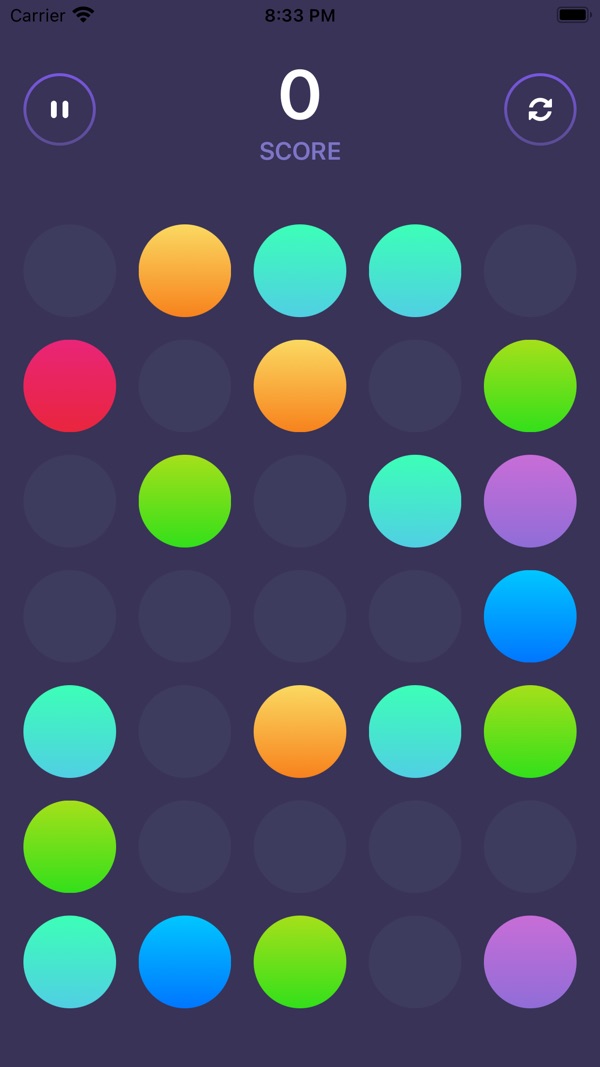
At the time of writing, its App Store listing shows:
- Free to play ("with optional ads that can be removed"), in Games (Board, Strategy)
- First released in December 2021
- 1 rating in the US store, 5 stars
- Supports iOS 15.6 and later
How the listing maps to this article:
| What the listing says | Where it's covered |
|---|---|
| "Tap and drag to connect matching dots" | DragGesture chains (section 3) |
| "Game gets faster and more challenging as you progress" / "Multiple difficulty levels" | spawnInterval and difficulty presets (section 1) |
| "Speed matters - faster matches = higher scores" | Freshness-based scoring (section 4) |
| "Pause and resume anytime" | A pausable TimelineView and game time (sections 2 and 4) |
| "Game Center integration" / "Global leaderboards" | Authentication, submitting and display (sections 5–7) |
| Release notes: "Fixed Game Center leaderboard display issue" | Version-branching the display path (section 7) |
9. Before you ship a Game Center game: a checklist
- The game plays fully without Game Center. Declined sign-in and offline are both tested.
authenticateHandleris set once, early, and presents from a visible view controller.- There's no
GKScore. UseGKLeaderboard.submitScore, once per run. - There's one leaderboard per difficulty, with IDs matching App Store Connect exactly.
- The display path is branched.
GKAccessPoint.trigger(leaderboardID:…)on iOS 18+, the view controller on older systems, and both tested. - The access point is hidden during play.
- Scores use game time. Pausing never changes the outcome.
- Hit areas are generous, and
minimumDistance: 0is set for instant drags. - Colour isn't the only cue. Consider shapes for colour-blind players.
Wrapping up
A drag-to-connect game shows how far plain SwiftUI goes. Canvas draws the board, TimelineView ticks it, DragGesture drives it, and nothing needs a game engine. Game Center is the part that keeps evolving. Use the iOS 14 GKLeaderboard APIs, adopt the iOS 18 access-point trigger, and plan for the iOS 26 deprecation of the old dashboard controller.
Play the game, or explore my other work:
- Speck Match (iOS): https://apps.apple.com/us/app/speck-match/id1600688336
- All of my free iOS apps: https://apps.apple.com/us/developer/alok-singh/id1508795536
- My portfolio: https://bestlatestapps.com/alok/
Think you can top the leaderboard? Let me know your score in the comments.
— Alok Kumar Singh
Originally published at https://bestlatestapps.com/blog/drag-to-connect-and-game-center-leaderboards-in-a-swiftui-puzzle-game/